
Few things disrupt a merchant’s momentum faster than an automated system getting stuck. When a customer emails you saying, “I just paid for my subscription, but I’m still locked out of my content,” you want a fast, clear path to find the bottleneck and fix it without waiting on an external support team.
In a basic product store, a successful transaction often means fulfilling an order or shipping a physical item. But when you layer WooCommerce Subscriptions, WooCommerce Memberships, and Teams for WooCommerce Memberships together, access control behaves less like an on/off switch and more like a chain of connected records.
A paid order only grants access when it contains a product that is configured to grant the correct membership plan. That access can also depend on the customer’s user account, subscription status, team seat, and the rules assigned to the restricted content.
By mapping how these systems relate to one another, you can step into your dashboard, spot the missing link, and restore access with more confidence.
The Access Ecosystem: How the Pieces Interlock
To diagnose why a user is locked out, you must first understand the structural hierarchy of your store’s records that control access.
Each object has one specific job:
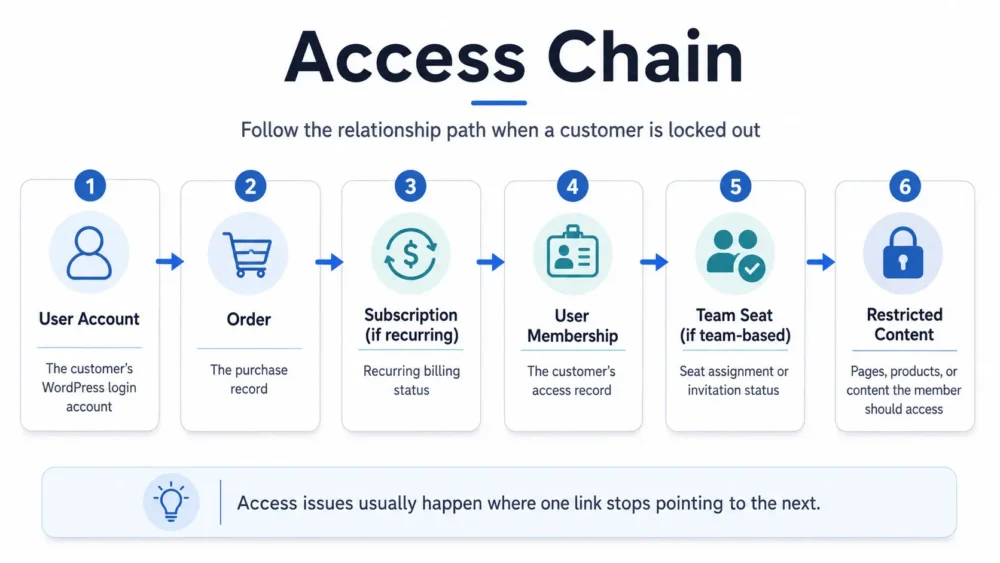
Here is what each record contributes to the access chain:
| Object Type | Core Responsibility | What It Controls |
| WordPress User Account | Identity | The email/password account used to log into the site. |
| WooCommerce Order | The Transaction | The record showing what was purchased and whether payment was successful. |
| WooCommerce Subscription | The Billing Schedule | The recurring billing record and renewal status. |
| Membership Plan | The Blueprint | The rules that define which content is restricted and which products grant access. |
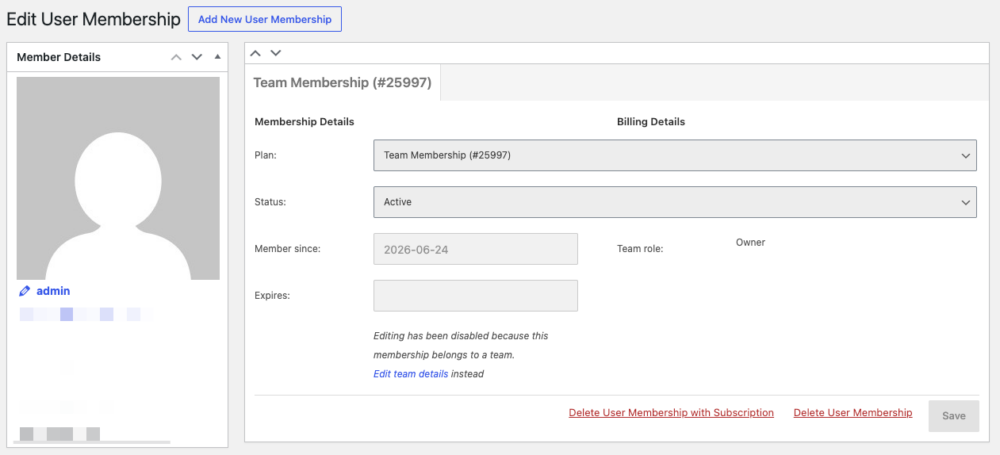
| User Membership | Access Pass | The individual access record tied to a specific user. |
| Team Record | Group Access | The team owner, members, invitations, and available seats. |
When access fails, your task as an admin is to follow the relationship path from the WordPress User all the way down to the Restricted Content to find exactly where the access chain broke.
The 4 Most Common Access Breaking Points
Instead of chasing a dozen disconnected symptoms, you can categorize nearly every access failure into one of four core system disconnects.
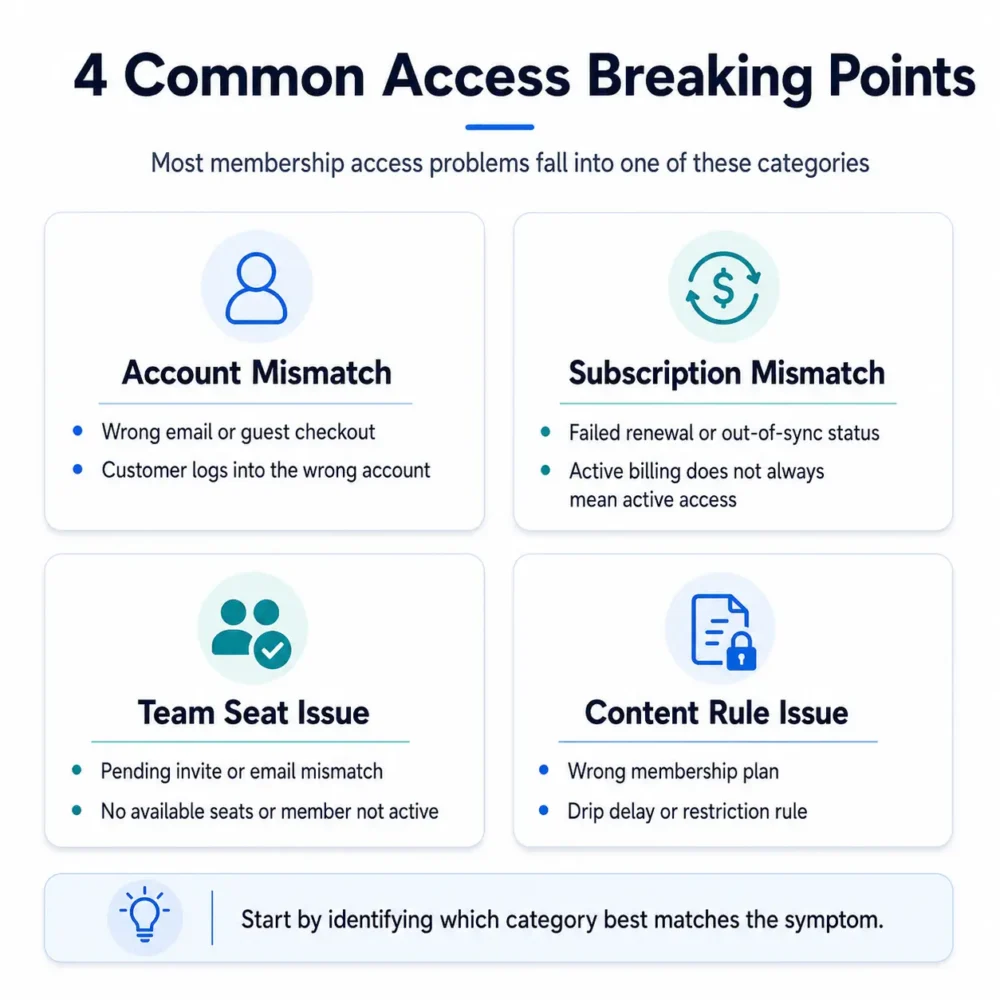
1. Account Fractures: Multiple Profiles and Guest Checkouts
A customer insists they paid, and your dashboard confirms a completed order exists. Yet, their User Membership status remains completely blank.
- The Root Cause: The customer likely checked out using an alternate email address, used a social login button that generated a new profile, or completed the transaction as a guest.
- The Reality Check: A user can only access restricted content through the exact WordPress user account that owns the User Membership pass. If they are logged into Account A, but the order and membership were assigned to Account B, the paywall will block them.
- The Fix: If the order belongs to a guest or an old account, reassigning it to the correct user may be part of the fix. You may also need to manually grant the membership or use the appropriate Memberships tools to create the missing access record.
2. The Subscription-to-Membership Disconnect
If the membership is configured to be tied to the subscription, the two records should generally move together. When they do not, check for failed renewals, manual edits, imports, or migration issues.
- The Failure State: The parent subscription says Active, but the corresponding User Membership says On Hold or Expired.
- Why it happens: This frequently occurs after manual database migrations, imported CSV profiles, or when a customer updates their credit card after a renewal order has already failed. Updating a card in their dashboard fixes future renewals, but it does not automatically pay off an an outstanding failed renewal order that may still be preventing access from being restored.
- The Fix: Inspect the subscription’s internal order history. If there is an outstanding failed or pending renewal order, resolve that order first, either by having the customer retry payment or by marking it paid only after confirming payment was received.
Important Admin Note: Avoid the temptation to immediately click “Force Active” on an expired membership record. If the membership is tied to an active subscription, manual overrides can cause the membership and subscription to fall out of sync, preventing future billing changes from updating access as expected.
3. The Teams Seat and Inheritance Breakdown
When using Teams for WooCommerce Memberships, managing access becomes a multi-user dynamic. It is completely common for a Team Owner to have access while their underlying team members are locked out.
- The Failure State: A company or family manager buys a group package. The manager has access, but their team members see a paywall.
- Why it happens:
- Pending invitations: The owner sent the invitation, but the employee never clicked the link to accept it and register their account.
- Email mismatch: The owner invited employee@company.com, but the employee registered their WordPress account using personalaccount@gmail.com.
- Subscription switches: Teams and Subscriptions Switching require special attention. A subscription switch can cancel the existing team and create a new team, but members may need to be added or re-invited to the new team.
- The Fix: Navigate to WooCommerce > Teams and inspect the specific team profile. Verify that the affected member’s email status is explicitly marked as Active rather than Pending, and ensure the total seat count has not been exceeded.
4. Content Logic and Dripping Mismatches
Sometimes, the database, payment profiles, and memberships are all perfectly active, yet the customer is still blocked from viewing a page.
- The Failure State: The user membership says the customer is active, but the site front-end still displays a “Restricted Content” warning.
- Why it happens: This is a content logic error rather than a plugin failure. It usually means the page the user is trying to access is assigned to a different Membership Plan entirely, or the content uses Dripping Rules designed to unlock access 14 or 30 days after the initial sign-up date.
- The Fix: Open the specific page or post inside the WordPress editor and scroll down to the WooCommerce Memberships restriction meta box. Cross-reference the exact plan name and dripping timeline against the customer’s active User Membership profile.
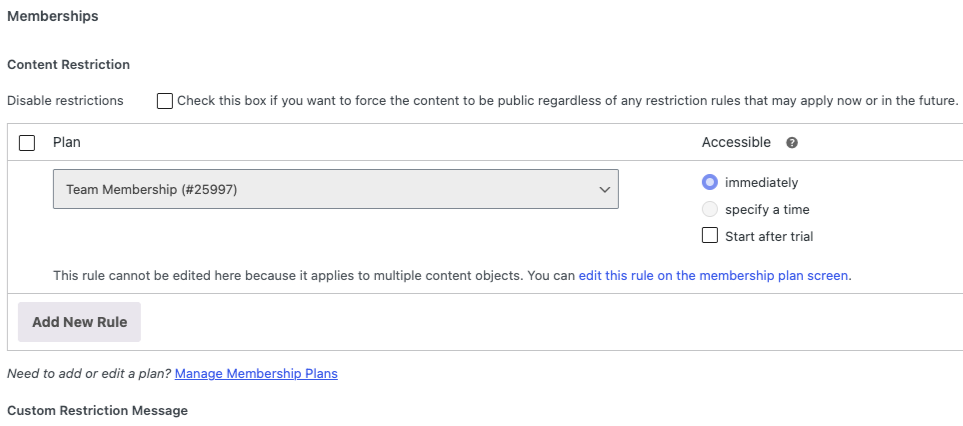
Confirm the affected page or post is restricted to the same plan the customer owns.
The Master Diagnostic Protocol (5-Step Sequence)
When troubleshooting a locked-out customer, follow this clean diagnostic protocol on your site to isolate the issue systematically.
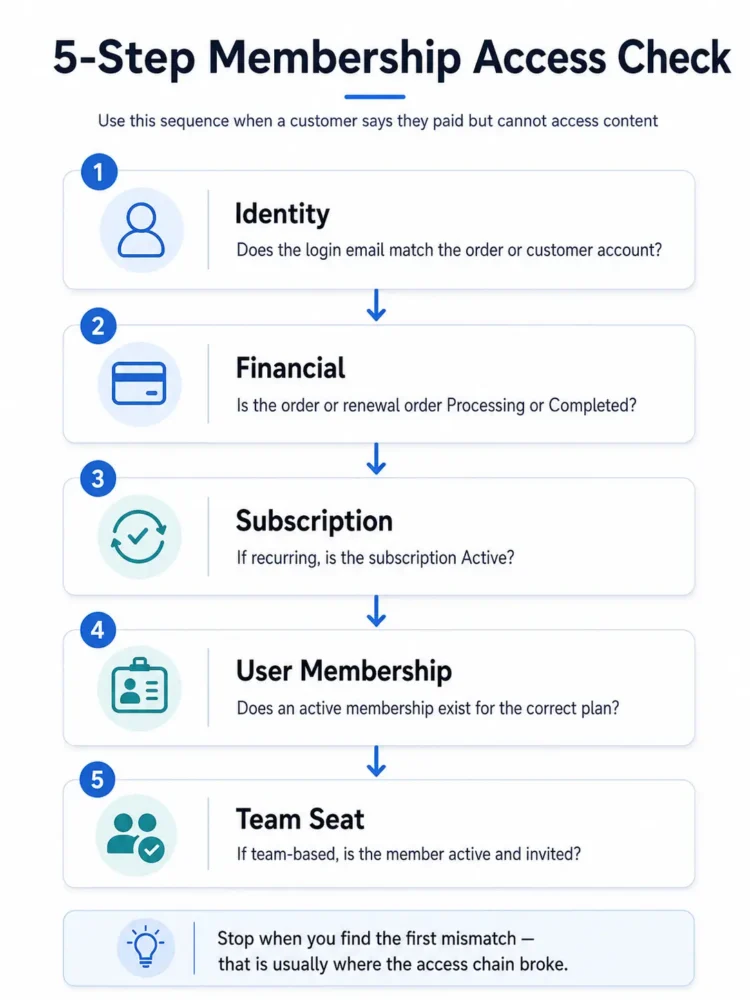
- Verify Identity: Ask the customer for the exact email address displayed in their
My Accountdashboard. Compare this to the user profile assigned to the order. - Verify the Transaction: Ensure the order status is Processing or Completed. If it is stuck on Pending Payment or On Hold, the membership access may not be created or activated.
- Verify the Subscription State: For recurring models, check that the subscription status is Active. If it’s on hold due to a failed card, resolve the payment anomaly first.
- Verify the Pass: Go directly to WooCommerce > Memberships > User Memberships. Search for the user. Check the start and end dates to make sure an expiration hasn’t triggered prematurely due to time zone differences.
- Verify the Team Status: If the product is a group license, open the team screen to confirm the seat allocation is valid and active.
Information to Gather Before Contacting Support
If you have followed the relationship chain and access still is not working as expected, the issue may involve caching, a recent migration, a plugin conflict, or a record that is not updating correctly. When opening a support ticket, providing these specific details helps support narrow the issue much faster:
- User identifiers: The affected customer’s email address and WordPress User ID.
- Record IDs: The specific order number, subscription ID, and user membership ID involved.
- Target destination: The exact URL of the restricted page, post, product, or member area the customer cannot access.
- Frontend behavior: A screenshot or copy-paste of the exact restriction message the customer sees.
- System Status: Your full WooCommerce System Status Report, found under WooCommerce > Status.
Isolating the exact link where access breaks helps your support team move past guesswork and focus on the record, setting, or status that needs attention.
In most cases, the fastest fix starts by identifying which record stopped pointing to the next one.
